How to Scan a QR Code on iPhone and iOS?
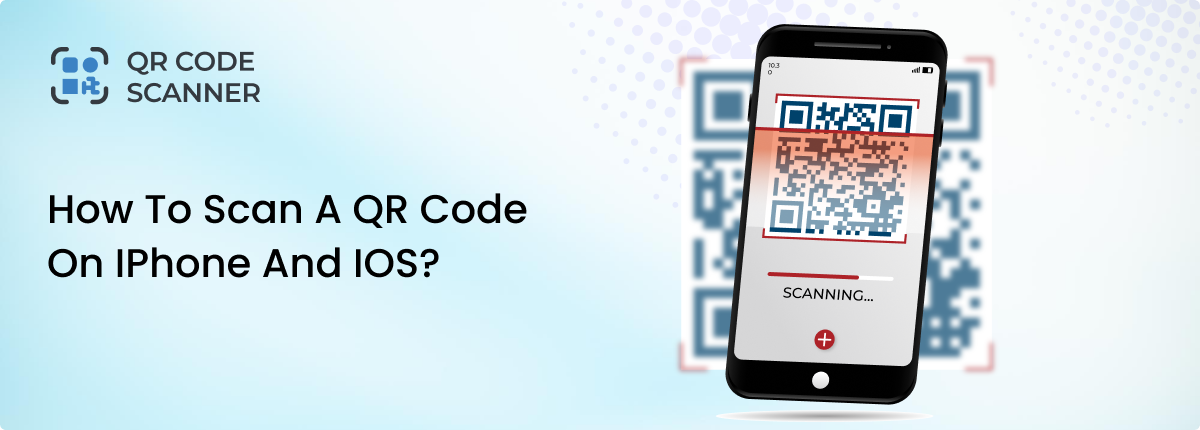
The Quick Response Code, commonly called QR code, was invented in 1994 at a Japanese automotive factory for tracking purposes. From the day they were invented to the present day, we have seen rapid adaptation by people to them.
Today, these small white and black squares are being used by millions of people around the world for different purposes. The key reason behind that is their ease of scanning. Yes, QR codes can be easily scanned with a smartphone camera. No external device is needed, especially if you are an iPhone user.
This article will guide you through the practical steps to scan a QR code on an iPhone directly, from an image, or without a camera.
How to Scan a QR Code on iPhone?
Depending on the iOS version your device is using, you can use various methods to scan a QR code on iPhone. Some methods are useful for on-screen scanning, while others are suitable for scanning images stored on the device.
How to scan a QR Code on an iPhone via camera?
Using the camera app is the quickest and easiest way to scan a QR code on an iPhone. Follow these steps to scan a QR code via your iPhone camera screen:
- Open the camera app.
- Point the camera at the QR code.
- Wait for the iPhone to detect the code.
- Once the QR code is recognized, a notification will appear.
- Tap the notification to open the website, file, or other content stored in the scanned QR code.
How to scan a QR Code from a picture on iPhone?
If a QR code is saved as an image or screenshot on your device, you can scan it directly from the Photos app.
- Open the photo app.
- Search the image containing the QR code.
- Long-press the QR area and wait for recognition.
- Upon recognition, a menu will appear.
- Select among the available options to fulfill your needs.
What if Your iPhone is not Scanning a QR Code?
QR code scanning is enabled by default on most iPhones. If your device is not scanning QR codes, check the settings.
- Open Settings.
- Scroll down and tap Camera.
- Find the Scan QR Codes option.
- Turn the toggle on.
After enabling this feature, return to the Camera app and try to scan the QR code again.
Other Methods to Scan QR Codes on iPhone
Besides using your iPhone’s camera to scan a QR code in an image, you can also use other methods.
1. Via Control Center
The latest iPhone version now includes a dedicated QR code scanner in the Control Center. In case you do not want to use the camera app, use this feature in the control center to scan QR codes.
- Open the control center.
- Search for and click the ‘QR Scanner’ app.
- Bring in QR code inside the frame.
- QR code scanned.
- You will see the information retrieved from the QR on your screen.
2. Wallet App
If the Wallet App is installed on your iPhone, you can use it for scanning QR codes.
- Open the Wallet app.
- Click the Scan Code option.
- Tap ‘Add to Apple Wallet’.
- Tap ‘Add’ again.
The saved file inside the wallet will contain the information retrieved from the scanned QR code.
3. Google Lens
Google Lens can scan QR codes and identify other objects, text, and images.
- Open the Google app or Google Chrome, then tap the Lens icon.
- Point the camera at the QR code.
- You will see the information as a pop-up inside the frame.
- Tap on the retrieved information to proceed.
4. Third-Party QR Scanner
If you scan QR codes frequently, some third-party apps or online QR code scanner offer extra features. For example, you get scan history, saved scans, and advanced security checks, such as whether the code is dangerous or safe to proceed.
What If Your iPhone is Not Scanning QR Codes?
If your iPhone fails to detect or scan a QR code, there may be several reasons.
- QR scanning is disabled: Check your camera settings and make sure that scan QR codes option is enabled.
- Blur or Damage: Sometimes scanning failed because the QR is extra damaged or very blurry. Try finding a cleaner version and scan again.
- Camera too close: Placing the camera lens too close to the QR code can cause detection failures and failed scans. Scan QR codes from an optimal distance that allows the camera to focus.
- Outdated iOS version: iOS 10 or older versions do not support QR code scanning. Update your device to the latest available version.
Where Can Scanning QR Codes Lead?
QR codes can store many types of information. After scanning a QR code, your iPhone may perform different actions depending on the content. These primarily include:
- Opening a website
- Connecting to a Wi-Fi network
- Download an app
- Accessing a coupon
- Opening a complaint form
- Tracking an order
- Sending an email or message
- Opening a location on the map
Many more…
Are QR Codes Safe to Scan?
Generally, scanning QR codes from a trusted source is safe. However, there are some dangers of QR codes that you should know about. Scammers sometimes use QR codes to direct people to fake websites or fraudulent payment pages. Follow these simple safety tips before scanning a QR code:
- Scan QR codes only from trusted sources.
- Check the destination URL before opening it.
- Avoid entering sensitive information on unfamiliar websites.
- Do not download unknown files from suspicious QR codes.
- Scan using a trusted QR scanner that validates the code security.
Takeaway
You can use different ways to scan QR codes on an iPhone. The simplest way is to open your iPhone camera and point it at the QR code. It will automatically recognize code and show you results. To scan QR codes from images on your iPhone, you can use the Photos app or an online QR code scanner.
If scanning does not work, check your camera settings, lighting conditions, and iOS version to resolve the issue. And always make sure the code you scan from your iPhone is from a trusted source. Many malicious actors use malicious QR codes to steal user data.
Related Blogs
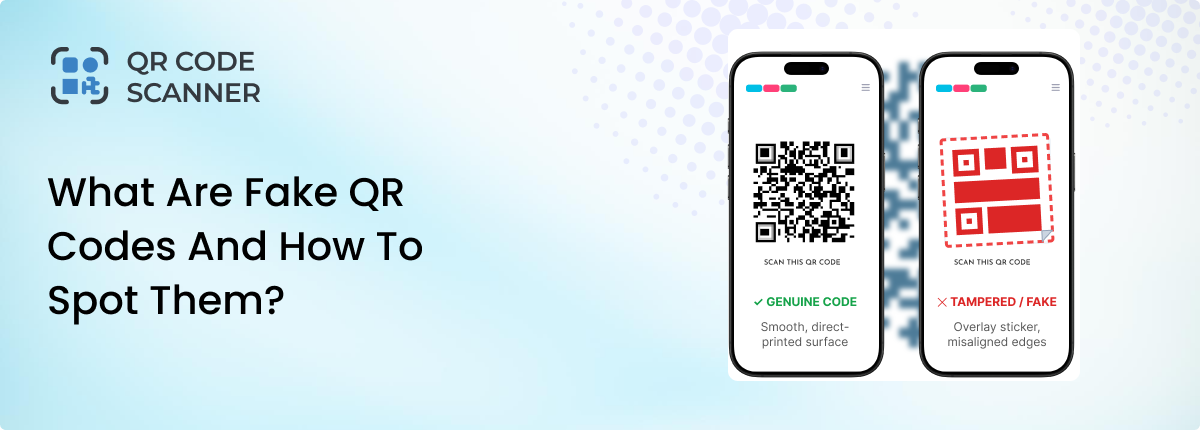
What Are Fake QR Codes and How to Spot Them?
Learn how to identify fake QR codes, avoid malicious links, and spot suspicious QR codes before scanning them.

How to Scan QR Code from an Image or Screenshot Online
Discover how to scan a QR codes from image/screenshot online. The step-by-step methods for Android, iPhone, and browser tools to scan QR code from photos instantly.
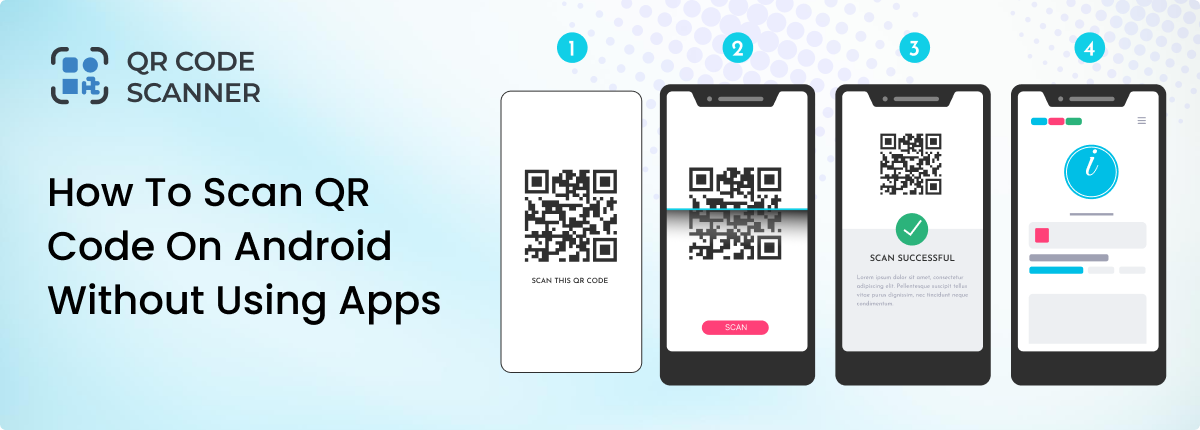
How to Scan QR Code on Android Without Using Apps
Learn how to scan QR code on Android without using apps. Explore different methods to scan QR codes on Android instantly.