How to Scan QR Code on Android Without Using Apps
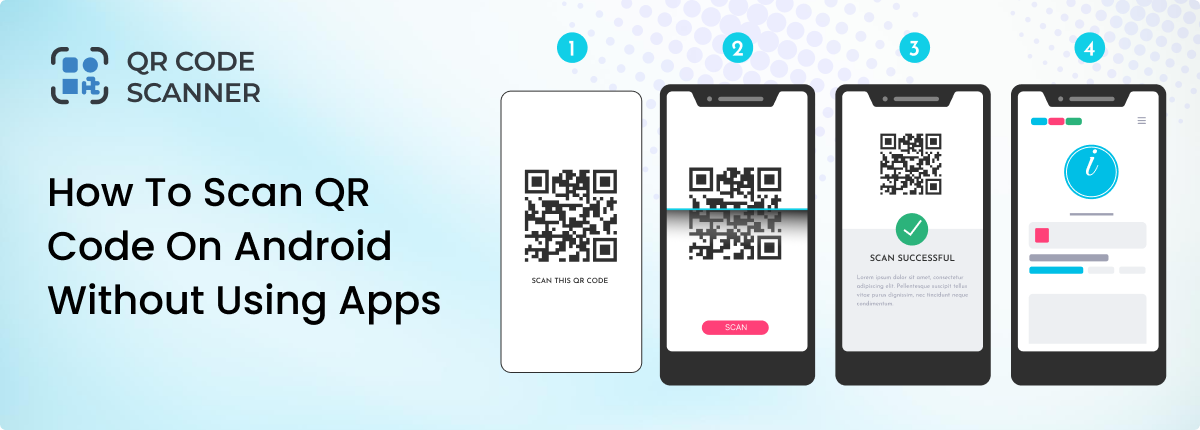
Android is one of the most popular operating systems today. It is used in around 70% of mobile devices such as smartphones and tablets. These devices are most commonly used to scan QR codes found in the wild.
Most modern Android devices can scan QR codes without downloading a scanner app. They use Built-in camera features, Google Lens, and browser-based QR code scanners to scan QR codes securely and quickly.
In this article, we will teach you how to scan QR code on Android devices in different ways (without installing an app). Let’s check them out.
1: Scan a QR Code Using an Online Tool (No App Required)
The best option for scanning QR codes is using an online tool like our own qr-code-scanner.io. It helps to scan QR codes on Android without any app, setup, or installation.
All it needs is an internet connection. Let’s see how it works:
- Open qr-code-scanner.io in your browser.
- Select the “Scan Via Camera” option.
- You will get a pop-up asking for permission to use the camera. Give permission.
- Point the camera at the QR code and snap a picture.
- The QR code will be scanned automatically, and its information will be extracted and displayed in the output.
- Then you can check the output and follow any links, or read any text shown.
This is the best method overall if you want to scan QR code online without an app, especially on older or customized Android devices. This is because it works on all kinds of Android devices regardless of their make and model. All it needs is an internet connection, which is widely available today via mobile data or WiFi.
2: Scan QR Code on Android Using the Built-In Camera
Most Android devices (Android 8.0 and above) can scan QR codes directly using the default camera app. This is probably the most commonly used method of scanning QR codes today.
Here’s how you can scan QR code with phone camera:
- Open the Camera app on your Android device.
- Point the camera at the QR code.
- Hold the code steady in the viewfinder for a second or two.
- The code will be scanned, and a notification or link will appear on the screen.
- Tap it to open the content.
That’s all there is to scanning the QR code with your camera app.
Sometimes, this won’t work; in that case, you need to check your camera settings and make sure “Scan QR codes” or “Google Lens suggestions” is enabled.
Then you can try scanning the code again, and it should work this time. Overall, this method explains how to scan a QR code with phone using native Android features.
3: Scan QR Codes on Phone with Google Lens
Google Lens comes preinstalled on many Android phones and works seamlessly for QR scanning. If you have a phone released after 2018, chances are Google Lens is installed by default. It is a very useful method of scanning QR codes.
Here’s how to scan QR code on Mobile using google lens:
On Android version 8 and up, you can take the following steps to scan QR codes from pictures or images in your gallery.
- Open the Google app or Camera app.
- If you opened the camera app, then tap the Lens icon. If you just open the
- Google Lens app, then don’t do anything.
- Point the camera at the QR code and hold it in the viewfinder for a second or two.
- Tap the detected link or action.
So, it functions in a similar way as the camera method; it's just that you are using the Google Lens app to do it. One drawback of this method is that you need to install Google Lens if you don’t already have it.
4: Use Quick Settings (On Some Android Devices)
Some Android brands (like Samsung) include a QR scanner directly in the Quick Settings panel.
Here’s how to access a QR code on your phone with this method:
- Swipe down from the top of the screen.
- Look for “Scan QR code”.
- Tap it, and it will open a camera app.
- Simply point your camera at the code, and it will be scanned.
Sometimes you won’t see the option in your quick menu. Then you have to go and edit the quick menu layout, and you will find it in the extra hidden options.
Common Issues With QR Code Scanning
No matter which kind of scanner you use, you are bound to run into issues with QR codes. For example, whether it is a camera, Google Lens, or an online QR code scanner, the scanning will fail if:
- The QR code is too small.
- The QR code is damaged.
- There is poor lighting, which makes the QR code hard for the camera to see.
To avoid such problems, always make sure the QR code is the appropriate size, completely visible, and undamaged. Also, make sure the camera on your device is working properly and doesn’t have a fogged viewfinder or a cracked lens. This way, you will ensure that no QR code is unscannable.
Final Thoughts
Android makes QR scanning simple and app-free thanks to built-in camera features, Google Lens, and browser-based tools. Whether you’re scanning a code from a flyer, a website, or an image file, these are some of the best ways to do it.
For maximum compatibility, using our online QR code scanner is often the best choice, especially when you want to scan a QR code on Android without an app.
Related Blogs

How to Scan QR Code from an Image or Screenshot Online
Discover how to scan a QR codes from image/screenshot online. The step-by-step methods for Android, iPhone, and browser tools to scan QR code from photos instantly.
How to Scan a QR Code on iPhone and iOS?
Learn the different ways to scan a QR code on iPhone/iOS. Also, learn the issues coming on QR scanning and how to fix them.
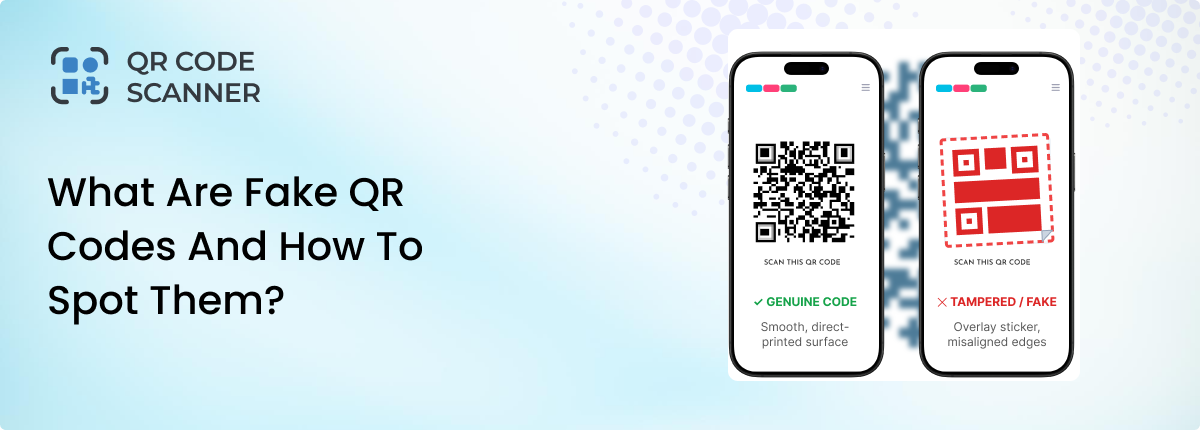
What Are Fake QR Codes and How to Spot Them?
Learn how to identify fake QR codes, avoid malicious links, and spot suspicious QR codes before scanning them.