How to Scan QR Code from an Image or Screenshot Online

QR codes have become extremely common nowadays. Gone are the days when you only found them in ads, posters, and packaging. Today, you can find them inside your screens in digital ads, emails, messages, screenshots, and apps.
For external QR codes, it was easy to scan them by pointing your phone’s camera at them, but what about QR codes that are inside the phone’s screen?
Well, that’s what we are going to teach you today. Believe it or not, it's very easy to scan a QR code on your screen. This guide explains all practical ways to scan a QR code from an image.
What Does It Mean to Scan a QR Code from an Image?
Scanning a QR code from an image means extracting the embedded data inside the code, such as a URL, text, or contact details, from an image of a QR code instead of a live camera view.
Today, QR codes can be found on screens in the following formats.
- Screenshots
- Downloaded PNG or JPG files that contain QR codes
- Images received via email or messaging apps
- QR codes embedded in documents or presentations
Here are a few different ways in which you can scan the QR code from them.
Method 1: Scan QR Code from Image or Screenshot Using an Online QR Scanner (Recommended)
An online QR scanner, such as our own “qr-code-scanner.io,” allows you to upload an image and instantly decode the QR code without installing any software.
To use it, you need an image of a QR code. So, let’s say you found a code while browsing a store, you take a screenshot of it, and then open the QR code scanner in a browser. Then you follow these steps:
- Upload the image or screenshot containing the QR code to the tool. QR-Code-Scanner.io lets you upload in a few different ways:
- You can copy-paste the image into the tool
- You can use the upload button to open the file explorer and then select the image from there
- You can drag and drop it into the tool
- The tool automatically scans and reads QR code from an image.
- The data in the code is displayed in the “Scanned Items” section.

The whole thing hardly takes 5 seconds.
Supported File Types
- PNG
- JPG / JPEG
- WebP
- Screenshots from mobile or desktop devices
Advantages
An online QR code scanner that works in your browser has a few distinct advantages.
- It works on any device, including desktop, tablet, and mobile
- No app installation is required, so there is no waiting
- It is fast and beginner-friendly due to its simple UI and the lack of required setup.
- Ideal for scanning QR codes from saved images
This method is especially useful when dealing with QR codes stored on your computer or copied from documents and websites.
Method 2: Scan QR Code from Picture Using a Smartphone Gallery App
Modern smartphones typically have built-in support for QR scanning directly from the image gallery. Here’s how to scan a QR code on Android and iPhone devices.
On Android Devices
On Android version 8 and up, you can take the following steps to scan QR codes from pictures or images in your gallery.
- Open your Google Photos app to scan qr code from the gallery.
- Select the image containing the QR code
- In the image, tap the Lens icon if available
- The photo will be scanned, and the QR code will be decoded.
- The results will appear as a pop-up at the bottom of the screen that you can view. If it's a link, then you can click on it to open the specific web page.

On iPhone Devices
iPhones also have a similar way to scan QR codes from screenshots or photos in iOS 15 and up. Here’s what you need to do.
- Open the Photos app
- Select the image with the QR code
- Press and hold the QR code, and it will be automatically decoded
- Tap the detected link or information to check it in detail.

Advantages
It is a built-in resource that you can access faster than a web page or a dedicated app. So, it is convenient to use.
Limitations
While this is a great approach, it still has some drawbacks.
- For starters, it is not supported on all devices
- This approach can fail with low-quality or compressed images
- It also offers fewer decoding options compared to online tools
Common Issues When Scanning QR Codes from Images
QR scanning from photos is great and convenient; however, issues related to the image itself can cause problems. So, it is important that you sort them out beforehand.
Here are some common problems you can run into.
- Blurry or Low-Resolution Images
QR scanners rely on clear patterns. If the image or screenshot resolution is so low that the scanner can’t see the individual dots in the code, the scan will fail.
Similarly, if the image is large but the QR code is small and only occupies a few pixels, the scan will fail.
- Partial or Cut-Off QR Codes
If the image is poorly cropped, such that parts of the code get cut off, it will also result in a failure to scan the code.
- Poor Contrast
QR codes rely on high contrast between their background and foreground. If your image is, for some reason very low contrast, the scan will fail.
Final Thoughts
Scanning a QR code on your screen or inside an image is pretty easy once you know what to do. The best approach by far is using an online QR scanner because they work on all devices, are easy to use, and don’t have any hurdles like registration, paywalls, or mandatory login. You can use them on your phone, desktop, laptop, and tablet with ease.
Other options include using Google Photos on Android devices and the photo app on iOS, as those have built-in QR scanning capabilities. In the end, you should use the option that is most convenient for you.
Related Blogs
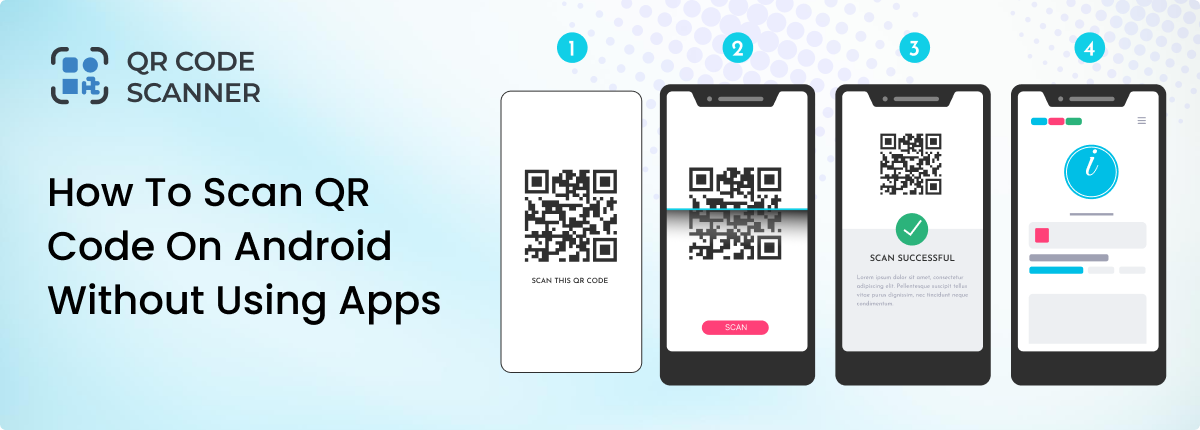
How to Scan QR Code on Android Without Using Apps
Learn how to scan QR code on Android without using apps. Explore different methods to scan QR codes on Android instantly.
How to Scan a QR Code on iPhone and iOS?
Learn the different ways to scan a QR code on iPhone/iOS. Also, learn the issues coming on QR scanning and how to fix them.
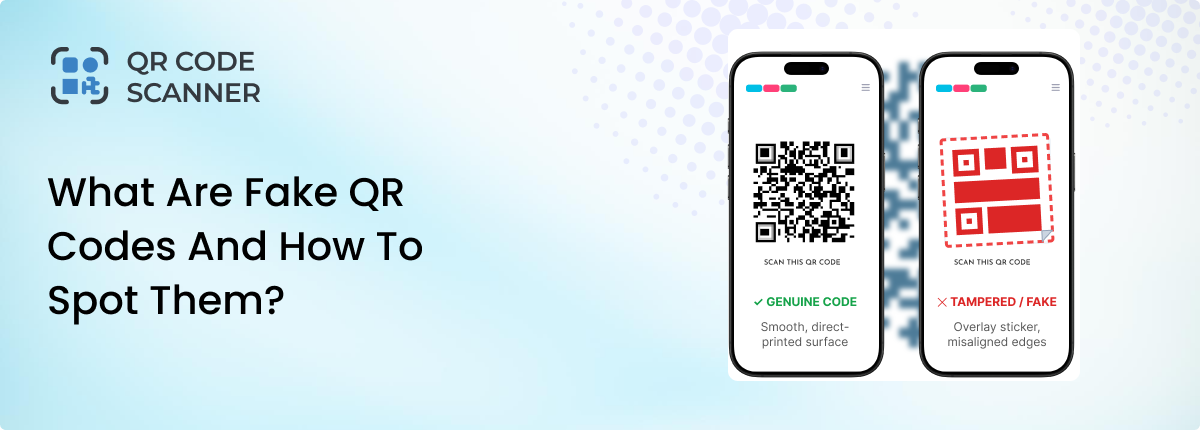
What Are Fake QR Codes and How to Spot Them?
Learn how to identify fake QR codes, avoid malicious links, and spot suspicious QR codes before scanning them.